Module 4 · Week 10 · Two labs · about 45–60 minutes each
Cloud Heights Family Clinic — Risk & Threat Investigation
You have spent earlier weeks at the keyboard: commands, networks and firewalls, encryption and SSH keys, certificates and trust. This week asks the question a security professional is actually paid to answer — what does any of that mean for a real business, and what should it do first?
Scenario date: Friday 13 March 2026, 09:00 (clinic local time). Nothing here is timed and nothing is scored automatically.
How this works
- 1. Walk the five rooms below. Read each staff statement and open the evidence cards.
- 2. Add the evidence you think matters to your findings. The lab never writes your interpretation for you.
- 3. In Lab 1, turn your findings into five risk scenarios and analyse the suspicious email.
- 4. In Lab 2, rate each risk, pick your top two, recommend a control for each, and brief the practice manager.
- 5. Download week10-lab-1.md and week10-lab-2.md and upload each one to the week-10/labs/ folder of your own CyberFoundations portfolio repository on GitHub (step-by-step directions are in Downloads on each lab page). Downloading alone does not upload anything.
You can stop at any point and come back — your work is saved on this browser and restored when you return.
Safety boundaries
- • Everything in this case is fictional. No real clinic, patient, address, or mailbox is involved.
- • Nothing in this lab scans, connects to, or attacks anything. All output shown is authored teaching text.
- • Where a fact is not known, the case says so. Unknown never means 'secure' and never means 'already breached'.
The clinic at a glance
AS-01
Appointment scheduling account
Books, moves and cancels patient appointments for the whole clinic.
AS-02
Patient records application
Stores and shows clinical information about patients.
AS-03
Staff laptops
The devices staff use to reach email and the records application.
AS-04
Public information website
Tells the public the address, hours and services of the clinic.
AS-05
Backup archive
The copy of clinic data used to recover after loss or damage.
Working out what could go wrong here is the job of this lab. Walk the rooms, read the evidence, and write your own list in Lab 1.
Investigate the clinic
Show a hint
Work through the rooms one at a time and ask, in this order:
- 1. What does this room need in order to do its job?
- 2. Which evidence card actually shows a weakness — not a worry, a weakness?
- 3. Who or what could take advantage of it, and how would they do it?
- 4. What would it cost the clinic and its patients if they did?
- 5. What does the evidence still not tell me? Write that down as an unknown.
Lab 1 has a fully worked example built on a different, non-assessed situation, if you want to see the shape of a finished row.
Clinic floor plan
Rooms (list view)
Room 3
Staff Workspace
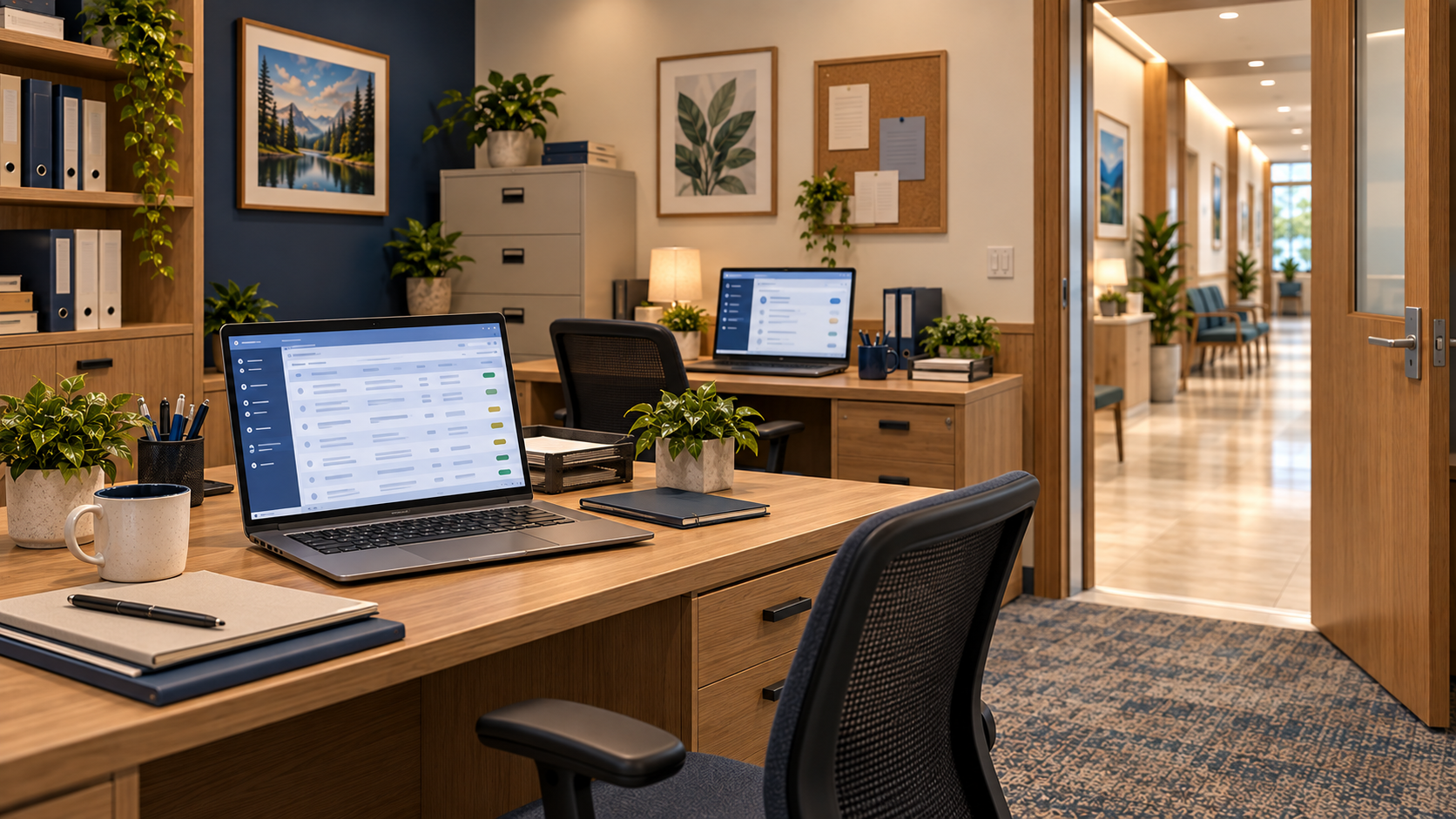
Laptops are the tools staff actually touch. Software updates are the boring maintenance that keeps known holes closed.
Dev Marchetti — IT Contractor (one day a week)
“Two laptops have not taken security updates in 90 days. Nobody is refusing; they just postpone the restart every day, and no one is responsible for chasing it.”
Evidence in this room
Adding a card keeps it in your findings list. It does not write your interpretation — what the evidence means is yours to say in the notebook and in Lab 1.
EV-WKS-01
System report
Update status report (IT contractor, 13 March 2026)
- 9 clinic laptops checked.
- 7 laptops: vendor security updates applied within the last 14 days.
- 2 laptops (asset tags CHC-04, CHC-07): no security updates applied for 90 days. Vendor security updates are listed as pending.
- Both pending laptops are used daily for email and for the records application.
Not known from this evidence
No alert, no malware detection, and no incident has been reported for these laptops. Missing updates is a weakness, not a confirmed attack.
EV-WKS-02
Staff statement
IT contractor statement
- Dev Marchetti, IT contractor (1 day/week): "Updates need a restart, and those two laptops are in constant use. Staff keep postponing. Nobody owns chasing it."
EV-WKS-03
Photograph
Desk photo — signed-in laptop
- Photo taken in the shared staff workspace at 09:00: a laptop is signed in to the records application, screen unlocked, no one seated.
- The workspace door opens onto the corridor patients use to reach the waiting area.
Show a hint
My investigation notebook
Yours to keep. Nothing here is graded automatically.
0 evidence cards in your findings.
Your Week 10 summary
This is a picture of your own work so far. Nothing here is graded, and no model answers are shown — it simply reflects what you have opened, chosen and written. Opening a room records that you looked at it; it does not say your answer is right.
Rooms you have visited
- Not opened yet:Reception
- Not opened yet:Records Office
- Not opened yet:Staff Workspace
- Not opened yet:Website Station
- Not opened yet:Backup Room
0 of 5 rooms opened.
Evidence in your findings
You have not added any evidence yet. Open a room and use “Add to my findings”.
Decisions you have recorded
Everything below is your own writing.
1. Appointment scheduling account SC-01
- Your threat / event
- Not written yet
- Evidence attached
- None chosen yet
- Likelihood × impact
- Not rated yet — Not rated yet. Not rated yet.
- Recommendation
- Not chosen as a priority
2. Patient records application SC-02
- Your threat / event
- Not written yet
- Evidence attached
- None chosen yet
- Likelihood × impact
- Not rated yet — Not rated yet. Not rated yet.
- Recommendation
- Not chosen as a priority
3. Staff laptops SC-03
- Your threat / event
- Not written yet
- Evidence attached
- None chosen yet
- Likelihood × impact
- Not rated yet — Not rated yet. Not rated yet.
- Recommendation
- Not chosen as a priority
4. Public information website SC-04
- Your threat / event
- Not written yet
- Evidence attached
- None chosen yet
- Likelihood × impact
- Not rated yet — Not rated yet. Not rated yet.
- Recommendation
- Not chosen as a priority
5. Backup archive SC-05
- Your threat / event
- Not written yet
- Evidence attached
- None chosen yet
- Likelihood × impact
- Not rated yet — Not rated yet. Not rated yet.
- Recommendation
- Not chosen as a priority
- Suspicious email: 0 of 3 warning signs written, reporting step still to write.
- Priority reasoning: 0 of 2 priorities chosen.
- Owner briefing: not started yet.
- Notebook (optional): nothing entered yet.
Still to do
Investigation steps left — this lab asks you to walk all 5 rooms:
- • Lab 1 — All 5 clinic rooms opened (the walkthrough this lab asks for)
- • Lab 1 — At least five pieces of evidence added to your findings
- • Lab 1 — Scenario 1 (SC-01): evidence, threat, vulnerability, consequence and at least one CIA concern
- • Lab 1 — Scenario 2 (SC-02): evidence, threat, vulnerability, consequence and at least one CIA concern
- • Lab 1 — Scenario 3 (SC-03): evidence, threat, vulnerability, consequence and at least one CIA concern
- • Lab 1 — Scenario 4 (SC-04): evidence, threat, vulnerability, consequence and at least one CIA concern
- • Lab 1 — Scenario 5 (SC-05): evidence, threat, vulnerability, consequence and at least one CIA concern
- • Lab 1 — Email analysis: three warning signs, a safe reporting step, and your "suspicious vs proven" reflection
- • Lab 2 — Risk 1 (SC-01): likelihood and impact rated, both with a reason
- • Lab 2 — Risk 2 (SC-02): likelihood and impact rated, both with a reason
- • Lab 2 — Risk 3 (SC-03): likelihood and impact rated, both with a reason
- • Lab 2 — Risk 4 (SC-04): likelihood and impact rated, both with a reason
- • Lab 2 — Risk 5 (SC-05): likelihood and impact rated, both with a reason
- • Lab 2 — Two priority risks chosen, with your reasoning
- • Lab 2 — Each priority risk has a control, how it helps, and remaining risk described
- • Lab 2 — Owner briefing written (about 100–150 words is the guide, not a limit)
Your Week 10 investigation is not finished yet. Finish the steps above before you upload your reports to GitHub.
Your progress
- Still to do:Lab 1 — All 5 clinic rooms opened (the walkthrough this lab asks for)
- Still to do:Lab 1 — At least five pieces of evidence added to your findings
- Still to do:Lab 1 — Scenario 1 (SC-01): evidence, threat, vulnerability, consequence and at least one CIA concern
- Still to do:Lab 1 — Scenario 2 (SC-02): evidence, threat, vulnerability, consequence and at least one CIA concern
- Still to do:Lab 1 — Scenario 3 (SC-03): evidence, threat, vulnerability, consequence and at least one CIA concern
- Still to do:Lab 1 — Scenario 4 (SC-04): evidence, threat, vulnerability, consequence and at least one CIA concern
- Still to do:Lab 1 — Scenario 5 (SC-05): evidence, threat, vulnerability, consequence and at least one CIA concern
- Still to do:Lab 1 — Email analysis: three warning signs, a safe reporting step, and your "suspicious vs proven" reflection
- Still to do:Lab 2 — Risk 1 (SC-01): likelihood and impact rated, both with a reason
- Still to do:Lab 2 — Risk 2 (SC-02): likelihood and impact rated, both with a reason
- Still to do:Lab 2 — Risk 3 (SC-03): likelihood and impact rated, both with a reason
- Still to do:Lab 2 — Risk 4 (SC-04): likelihood and impact rated, both with a reason
- Still to do:Lab 2 — Risk 5 (SC-05): likelihood and impact rated, both with a reason
- Still to do:Lab 2 — Two priority risks chosen, with your reasoning
- Still to do:Lab 2 — Each priority risk has a control, how it helps, and remaining risk described
- Still to do:Lab 2 — Owner briefing written (about 100–150 words is the guide, not a limit)
Completion means the required work is present. Nothing here grades your wording.
Study mode and saving
Ready · Saved on this browser/device only. This is not cross-device sync — use the JSON backup to move your work.
Saved with your Week 10 work on this browser/device and included in your JSON backup.
Downloads
Reminder: enter your name above before downloading, so your reports show who wrote them.
Reports contain your own writing only. Unfinished work is still downloadable and is clearly marked as a draft with a list of what is missing.
How to add your Week 10 reports to your GitHub portfolio
- 1. Finish the lab here, check the required-work list and your reasoning, and enter or check your name above.
- 2. Use Download Lab 1 report (Markdown) to get week10-lab-1.md, or Download Lab 2 report (Markdown) to get week10-lab-2.md.
- 3. Open your own existing CyberFoundations student portfolio repository on GitHub — not the institute's template repository. Week 10 reports belong in the week-10/labs/ folder, the same pattern as Week 8 (week-08/labs/) and Week 9 (week-09/labs/). The full destinations are week-10/labs/week10-lab-1.md and week-10/labs/week10-lab-2.md.
- 4. If the week-10/labs/ folder does not exist yet, create it once: from your repository's main page choose Add file → Create new file, type week-10/labs/README.md as the filename, add a short heading such as # Week 10 Lab Reports, and choose Commit changes. If the folder already exists, use it as it is — don't replace an existing README.
- 5. Open the week-10/labs/ folder, choose Add file → Upload files, select the matching downloaded .md report, check the filename and destination, type a meaningful commit message, and choose Commit changes (follow GitHub's confirmation if it asks).
- 6. Open the committed file on GitHub and confirm your name and latest completed answers show. Downloading a report alone does not upload it to GitHub or submit it for grading.
Revising a report
Edit your answers here, download a fresh report, and keep the original filename (remove any “(1)” or “(2)” your browser added). Upload it to the same week-10/labs/ folder under the same filename, check that you are updating the intended file, commit, then reopen it to verify. Do not delete your other work.
- • Grading submission instructions will be provided separately.
- • The combined portfolio report is optional and does not replace the two individual reports.
- • The JSON backup only restores editable work in this demo — it is not a lab report to upload.
- • Screenshots are optional.
Backup and restore (this browser only)
Your work is saved on this browser/device. To move it to another computer, download the backup file here and restore it there. This is a file you carry, not automatic sync.
Reset Week 10
This clears only your Week 10 work. Work from other weeks is untouched. Download a backup first if you might want it back.